Work
What you hand to Ian becomes work. It's planned and run, and its result and evidence stay on record.
When you hand a task to Ian or an agent, it becomes Work. Work goes through a plan, then runs, and when it finishes, its result and evidence stay on record.
Start and find work
To start new work, press Talk to Ian on Home and tell Ian what you need. If Ian decides the request should be handled as work, it creates the work and runs it as soon as the plan is ready. The progress shows right in the conversation, and Open work opens the work screen.
Check what's waiting on you in Needs your attention on Home. Work shows the unfinished personal work you started, with its Planning, In progress, Paused, or Blocked state, plus handoffs sent to you and help requests opened by people on your team. Requests that need a decision gather in Pending approvals. See team work in Collaboration and finished work in History.
Plans and decisions
Work created as a draft (for example, with Reuse in History) doesn't run right away. Expand Execution details on the work screen to check the steps and owners Ian proposed, and type any changes in the box as if you were telling Ian. When you're happy with the plan, press Start as planned. Nothing runs before you start it. Only the creator can see personal work; team work is also visible to that team's current members. Only the creator can change a draft's plan and start it.
When a step during the run needs a person's decision, the work goes into the Awaiting approval state. Press Review approval request on the work screen to open Execution details, check the request, then press Approve or Reject. For a request with options, press Choose this on the right option; if none fits, press None of these — I’ll steer by message. If you're the reviewer named on the request, you can decide whatever your role. For work started in your conversation with Ian, you can also decide in that conversation (see Approvals). In team work, when something an agent wants to keep as team knowledge is important or needs checking, a Knowledge review card appears, and the person who created the work checks the summary and the reason for review, then presses Approve or Reject. What's on this card reaches knowledge only once it's approved; content that doesn't need review is added right away.
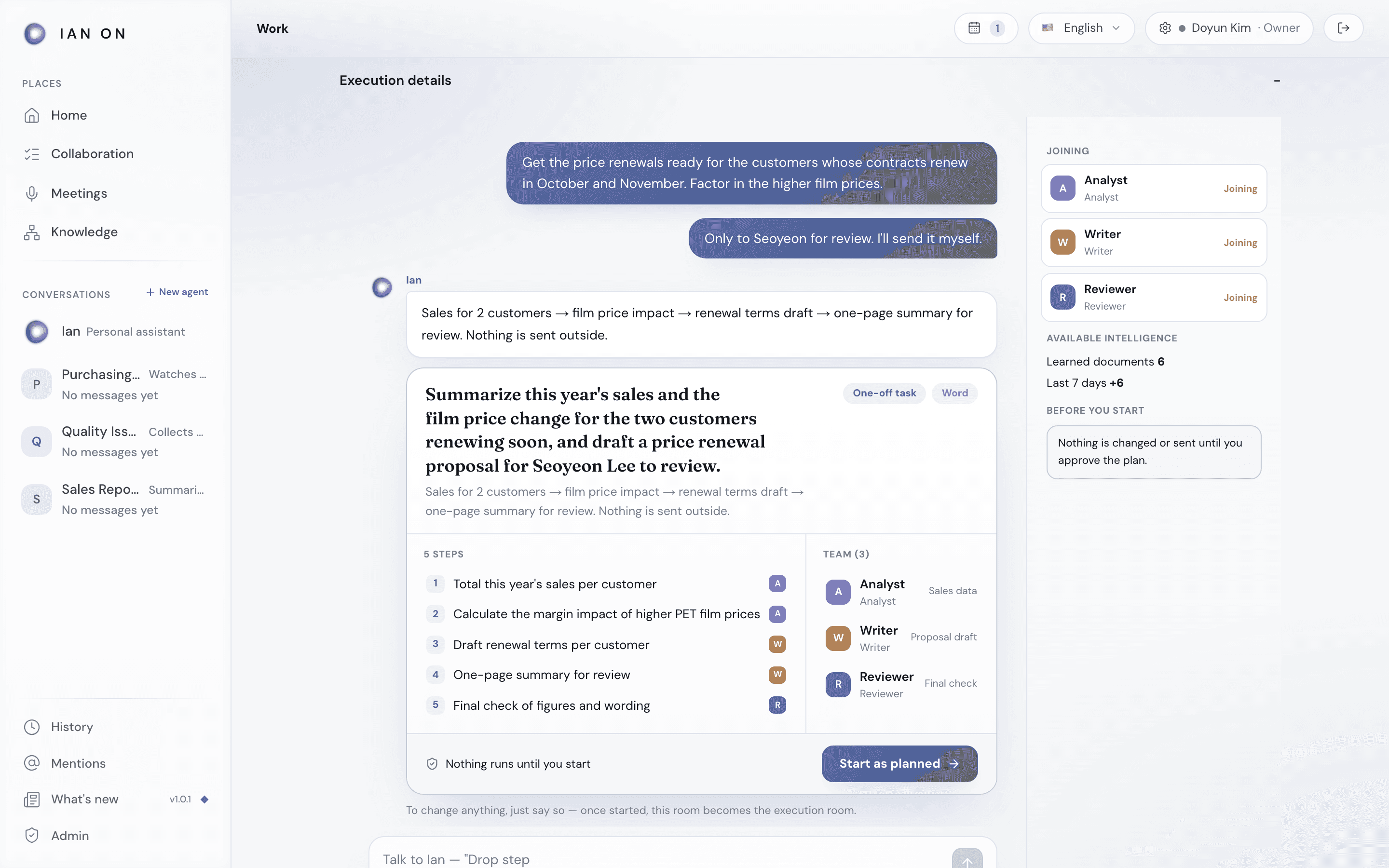
The work screen
When you open work, the Request, its current state, and the Driver are at the top. For finished work, check the result summary, Artifacts, and Evidence in Latest result receipt. Human action needed shows what you can do right now, and you talk about the work in the Outcome thread. In the outcome thread of team work, you can call someone on your team with @, and they go straight to that message from Mentions. To see step-by-step progress and agent activity, expand Execution details. To ask a running agent to change direction, press the line in it that starts with Decide or step in to open the conversation.
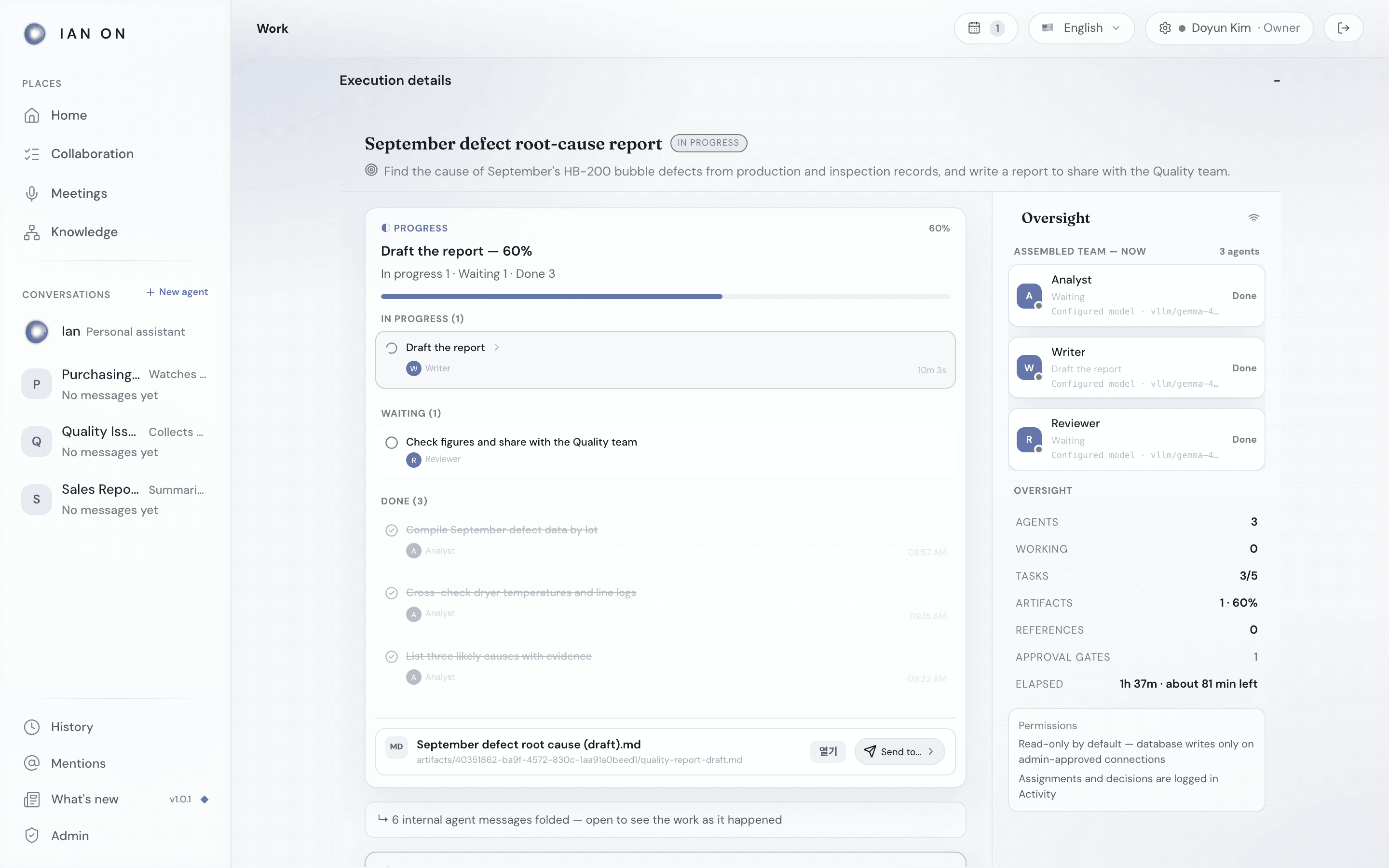
Stop and run again
To stop running work, press Stop Work on the work screen, then press Stop. This button is shown to the work's Driver. Artifacts that are already finished and the reason it ended stay after you stop it. In an agent conversation, you can stop it with Stop.
When work goes into the Blocked state, check the cause in Execution details. The Driver resumes the unfinished steps with Retry unfinished, and artifacts already completed stay as they are. For work started in your conversation with Ian, you can also use Stop and Retry unfinished on the status line shown in the conversation. If the start was stopped or Ian couldn't make a plan, press Send again as a new request to put the request back in the box and send it again.
Hand off and continue
The Driver of team work in progress can send a Transfer or a Request review to someone on the same team from Hand off to a person. The recipient sees it in Work under Needs your attention on Home, and presses Accept or Decline on the work screen. For finished work, whoever was the driver when it completed can continue it with Follow-up Work in the same Hand off to a person.
Finishing, reusing, and repeating
- When work finishes, it moves to History with its result and approvals attached.
- Finished work is archived by whoever was the driver when it completed (for stopped work, the person who stopped it). Press Archive in Execution details, rate the result, then press Rate and archive. To archive without a rating, press Skip. If the rating can't be saved to memory, you see Work archived, but its rating wasn’t saved to memory.
- To do something similar again, press Reuse on that work in the History list. A fresh draft is created from the same goal.
- You can hand an agent a task to repeat hourly, daily, or weekly, or one that starts when new material arrives or a previous work result is confirmed. Use Run now, Paused, Resume, and Add recurring task in Recurring tasks in the menu (⋯) at the top of the conversation, and check the state and next run time in Agent settings. Results are reported to that conversation.
- In a conversation where you've handed over work, View flow shows the agent and state of each step, and which steps run In parallel and where they join. In Recent runs, press Criteria and evidence used to see that run's review record and the evidence it referred to.
- You can also hand recurring checks to Ian (see Home & Ian conversations).
- For work that has to run regularly, an operator can promote a repeating pattern into a Routine in Admin → Routines. See Admin console.