History
The archive of finished work, email, and meetings — what was produced, who approved it, and how to reuse it.
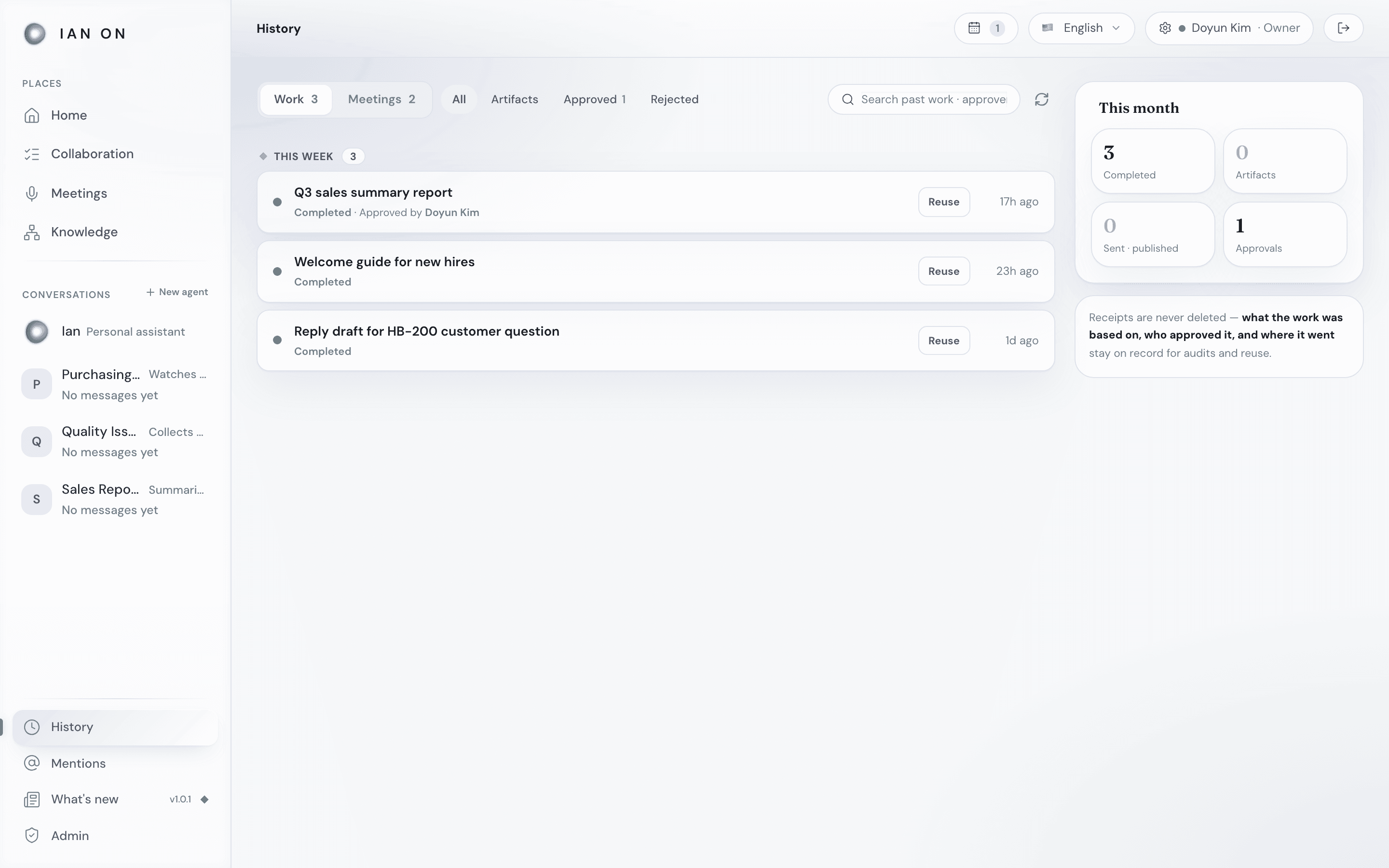
History is the archive of finished records. Your own work in progress and team work that needs checking show up in Needs your attention on Home (see Home & Ian conversations), while History collects finished work plus email and meeting receipts — the "what was done, and who approved it" view.
Reading the archive
At the top, choose Work, Email, or Meetings. Email and Meetings appear only when your organization has those features turned on.
- Work — work that is Completed, Stopped, or Archived.
- Email — your email handled by the Gmail assistant. Up to the 30 most recent are shown.
- Meetings — finished meetings that you hosted. Up to the 50 most recent are shown.
Work shows your personal work and the work of the teams you currently belong to. Filter by All, Artifacts, Approved, or Rejected, and use Search past work · approvers to search by work title or by approver or rejecter name. Rejected collects the work that carries the Rejection recorded chip.
Work is grouped into This week and Last week, and older records are grouped by month, newest first. Meetings are grouped into Today, This week, and Earlier, and email is listed newest first without grouping.
Receipt types
- Work receipts — show the title, status (Completed, Stopped, or Archived), the approver, who rejected it and why, the number of steps, and the number of artifacts. A Sent chip appears when the result was sent or published, and a Rejection recorded chip appears when an approval request was rejected or the result was rated Not usable when it was archived. Press Reuse on any row to create a new planning draft with the same goal.
- Email receipts — show the email summary along with to-dos, decision candidates, attachments, and the reply draft status (Draft created or Draft failed). If a draft was created, check it in Gmail with Open Gmail drafts. Attachments that were read can be saved to Knowledge with Add to intelligence; if there's more than one place to add them, choose the place first.
- Meeting receipts — finished meetings. Press a row to open a detail screen with the summary, decisions, to-dos, and transcript (see Meeting receipt details below). From there, the host can delete the meeting permanently with Delete meeting record → Delete.
On a wide screen, the This month panel on the right sums up this month's work records in four numbers: Completed, Artifacts, Sent · published, and Approvals — a quick pulse for a monthly review.
If there are so many work records that only some are loaded, a Recent records only notice appears and the This month numbers get a + after them (meaning "at least"). If approval and delivery details can't be loaded, a notice appears with Try again, and any number that couldn't be checked shows as —.
Meeting receipt details
When you open a meeting receipt, you see Summary, Attendees and Speakers, Decisions, To-dos, the work created from to-dos (Sent to work), and Transcript. If documents were attached to the meeting, or global documents were referenced during it, Related materials appear too.
- Copy the content with Copy summary or Copy transcript, or download the meeting notes as a file with DOCX.
- If the summary hasn't been created yet or failed, the host presses Regenerate.
- If the decisions or to-dos haven't been recorded in knowledge yet (Not added yet), the host presses Add to intelligence to keep them in team knowledge. If that fails, press Try again. Once they're recorded, you can go to them with View in Knowledge. If you don't belong to a team, nothing is recorded.
How long it's kept
Work receipts are kept with no time limit and can't be deleted from History. Team work can be permanently deleted by an Owner or Admin in Admin → Organization & members → Teams.
Meeting receipts can be permanently deleted by the host who ran the meeting. Deleting a meeting record doesn't remove the decisions and to-dos already recorded in knowledge.