Getting started
Sign in, learn the menu, and send Ian your first request — in about five minutes.
1. Sign in
Open your company's Ian On address, enter your email and password, and click Connect to operating brain. If the sign-in screen is in English and you want Korean, choose 한국어 from the language switch at the top right.
You can't sign up on your own. Accounts are created with an invitation code, or an admin creates one for you.
- If you received an invitation code — click Enter with invitation code at the bottom of the sign-in screen, enter your Invitation code, and click Verify code. Then enter your name, email, and password and click Sign up. If you open the invitation link your admin sent, the code is verified automatically.
- If an admin created your account — sign in with the email and password you were given. The first time you sign in, you have to change to a new password.
If you forgot your password, click Forgot your password? on the sign-in screen to see what to do. No reset email is sent, so ask an owner, or an admin whose role is higher than yours, for a temporary password. After you sign in with the temporary password, you have to change to a new password.
2. Find your way around the left menu
- Home — where your day starts. See your schedule, Needs your attention (mentions, work, pending approvals, delivered results, and more), and your Agents at a glance.
- Collaboration — see the teams you belong to and how your teammates' work is going.
- Meetings — transcribe meetings live and sort out the decisions and to-dos. Shows only if an admin has turned on the Meetings feature.
- Knowledge — your company's documents, and the knowledge graph built from them.
- Conversations — the list of Ian, your agents, and conversations you share with others.
- History — the receipt archive of finished work, email, and meetings. It keeps what each approval was based on and who gave it.
- Mentions — the messages that mention you, in one place.
- What's new — what changed in the new version.
- Admin — the operator console. Visible only to owners and admins.
Check work in progress and approvals on Home, and finished work in History. On a small screen (phone), the bottom tabs hold Home, Collaboration, Meetings, and Knowledge; History, Mentions, What's new, and Admin are under More. If a menu you need isn't there, ask your admin to check whether that feature is turned on.
3. Ask your first question
On Home, click Talk to Ian, or click Ian in the Conversations list on the left, to open a conversation. Type what you need in plain language — for example, "Give me a quick summary of new sign-ups this week." Ian works out what kind of request it is.
- A simple question is answered right there, with the sources it used shown beneath the answer.
- A task to carry out ("Pull together last quarter's defect report") — Ian makes a plan and then runs it right away. Progress and anything that needs your decision show up in the conversation, and clicking Open work opens that work's detail screen.
For the full flow, see Home and Ian conversations.
Empty answer or a permission error? Ian looks things up in what you can see: your personal memory, your teams' documents, and global documents. If the answer still isn't there, the material you need may not be shared with your team. Database lookups follow the data access policy your admin sets. Ask your admin to check your team assignment and access.
If you want an agent to keep handling a particular job, click New agent next to the Conversations heading on the left. A conversation with the new agent opens right away and asks, "What would you like to hand over?" Just describe the job.
4. Set your defaults
Click the account button at the top right (a gear and your name) to open Settings. On a small screen, only the gear shows. Check a few things once:
- Profile — your display name. Only an owner can change the email.
- Language — Korean or English. If you don't choose one, the app follows your browser's language, and shows English if that language isn't supported.
- Weekly report delivery — choose whether your Friday weekly report draft arrives as an In-app notification or a Discord DM. You can pick Discord DM only after you link your Discord account. This shows when an admin has turned on Weekly Reports and Messenger Bots in Admin → Features.
- MCP API keys, Gmail Assistant Connection, Discord connection, My AI Connections — connect an MCP client like Claude Code, your Gmail and Discord, and your own AI account. You can connect Gmail and Discord only if an admin has turned on those features. See Personal connections.
For every item, see Settings.
First-run setup (owners and admins)
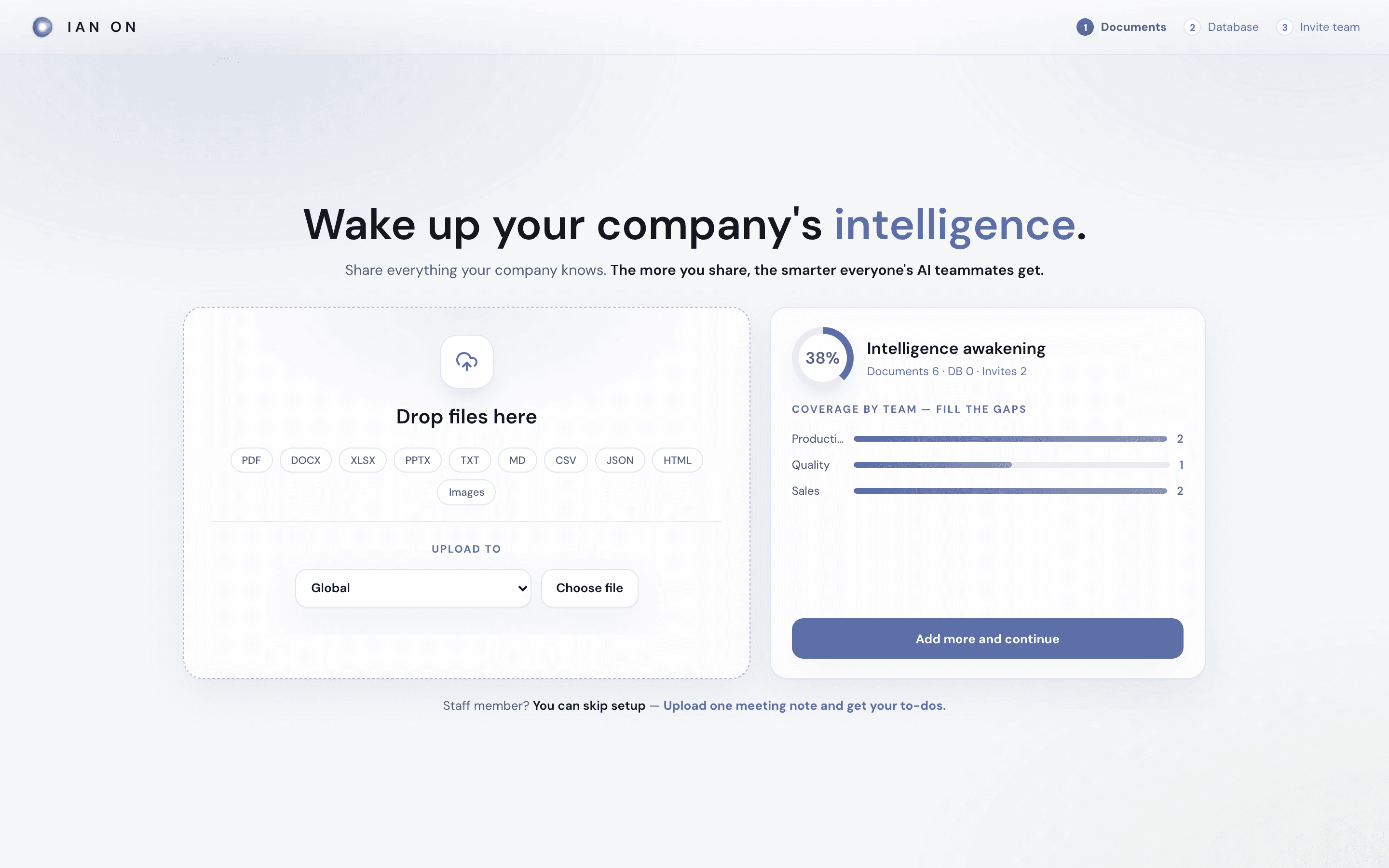
The first time you open a newly installed Ian On, the Initial setup screen opens. The first account you create there automatically becomes the owner and needs no invitation code. Once the account is created, you go straight to the Get started screen. It's three quick steps:
- Documents — choose Upload to, then drag a file in or click Choose file. Files upload one at a time. You can upload PDF, DOCX, XLSX, PPTX, TXT, MD, CSV, TSV, JSON, JSONL, HTML, and LOG files, plus images (PNG, JPG). Owners and admins can choose Global (visible to everyone) or a team they belong to.
- Database — this feature is off at first. Click the link in the notice and turn on Database Connections in Admin → Features, and PostgreSQL and MySQL connect buttons appear in this step. For details, see Database connections.
- Invite team — pick a team you belong to and click Create invite code to make a single-use member invitation code. If you don't belong to a team, or want to invite on other terms, create one under Manage invitations in Admin → Organization & members.
If the organization has no usable AI model connection (including when it has only personal or voice transcription connections), a No AI backend is connected yet notice appears at the top of this screen. Connect one in AI providers. Clicking You can skip setup takes you to Home. Apart from creating the first owner account, this screen doesn't open automatically; people who sign in go straight to Home.
What's next
Once the flow feels familiar, read Work, Knowledge, and Collaboration. If you use weekly reports, see Weekly report too.