Knowledge
See and manage the knowledge your team builds together — a relationship graph and the documents behind it.
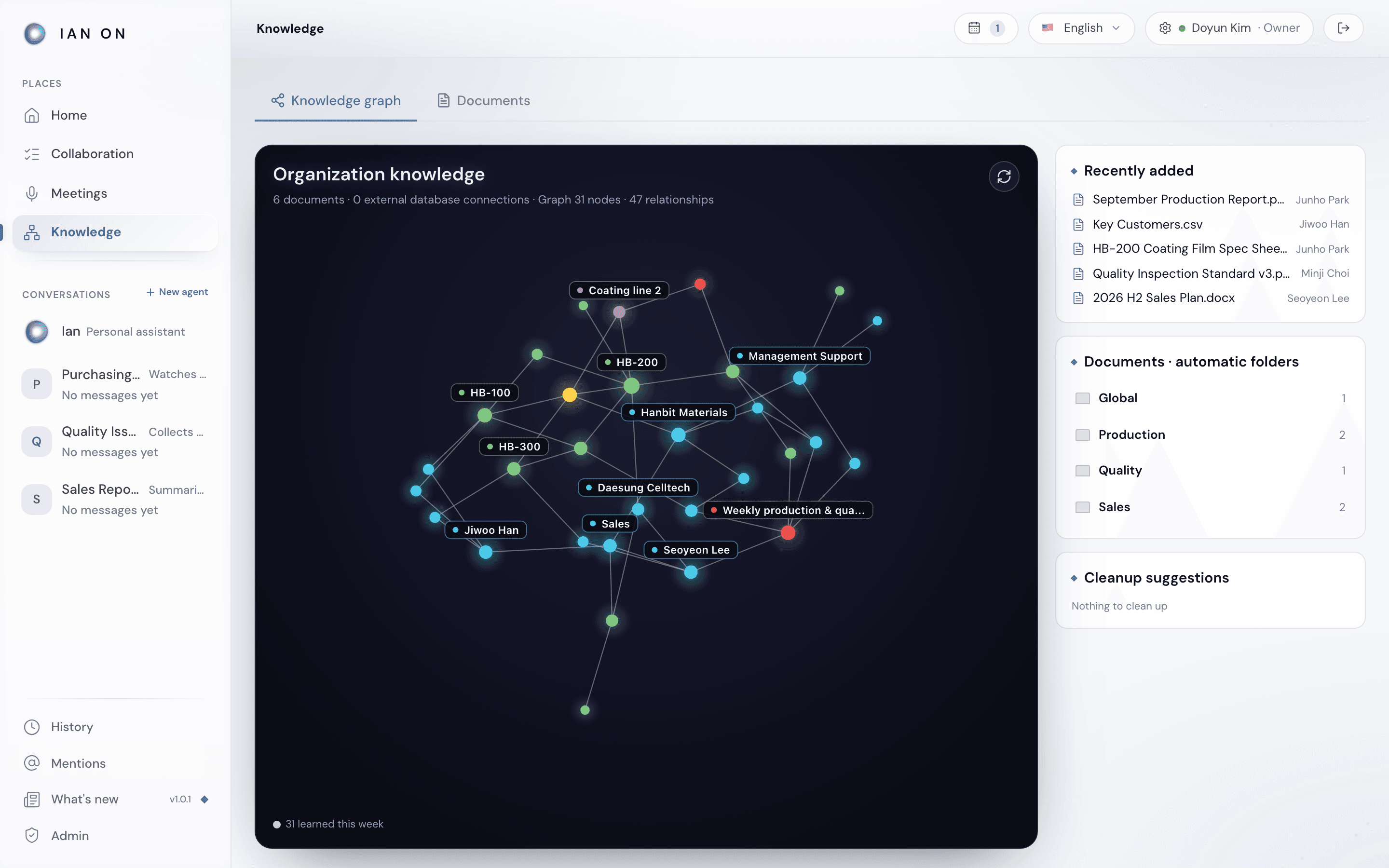
Knowledge is the shared memory your team builds together. It has two tabs: the Knowledge graph, which shows how things connect, and the Documents behind it. When Ian answers, it can draw on the material you can see, and team work can draw on that team's material and global material.
Two ways to look at it
- Knowledge graph — the default view. Instead of a flat list of files, it shows the relationships your company's knowledge contains: how people, projects, documents, and decisions connect to one another — context that a plain list of files can't hold.
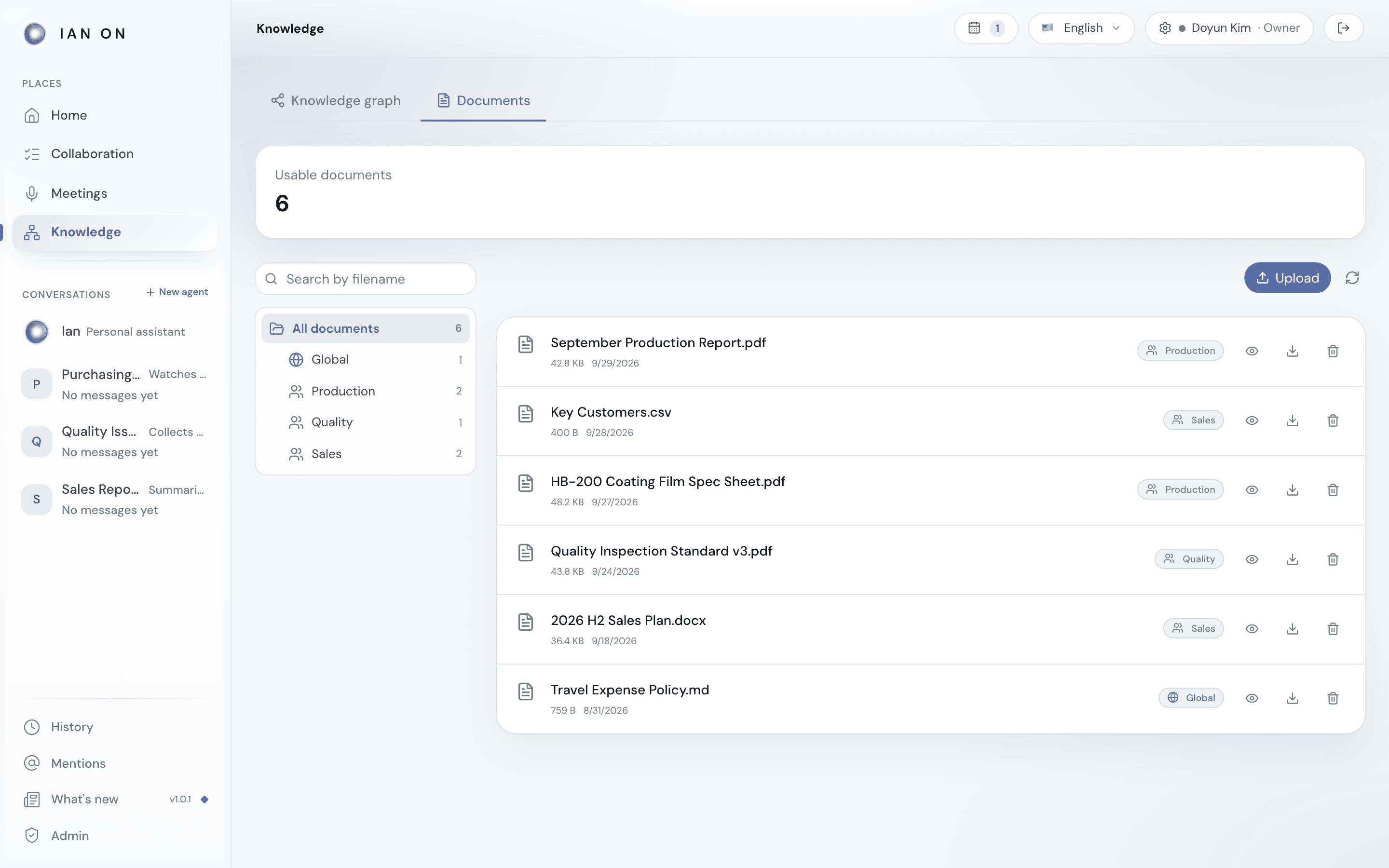
- Documents — the source material. The top shows the number of Usable documents, and, if any documents are being analyzed or have failed, those counts too. Press the failure count to see only the failed documents. Find documents with Search by filename and the folders on the left (All documents, Global, and one per team); each folder shows how many documents it holds. The list sorts itself automatically: being analyzed first, then failed, then done.
Press a node in the knowledge graph to see details such as its source and connections. A node that came from a meeting decision shows the Meeting transcript and the range of lines spoken. When the original document or meeting record can be found, Open source opens it directly. Next to the graph are Recently added, Documents · automatic folders, and Cleanup suggestions. Press a folder to open it in the Documents tab. Cleanup suggestions shows how many items have gone 180 days or more since their last update, and pressing Review takes you to the Documents tab. Material isn't dropped from search automatically just because it's old.
Adding knowledge
Press Upload and drag in or choose files. Supported files are PDF, DOCX, XLSX, and PPTX; PNG and JPG images; and TXT, MD, CSV, TSV, JSON, JSONL, HTML, and LOG text files. Several can process at once. Each document is read, split, embedded, and indexed automatically. A status indicator on each row shows the progress.
Each file can be up to 100MB, and a DOCX file up to 10MB. For a larger DOCX, save its content as a TXT or MD file and upload that. A PDF longer than 20 pages is split into 20-page parts and uploaded as several documents. For PPTX, only the text on slides and in speaker notes is read, not text inside pictures. When you upload, you choose the Visibility. You can pick a team you belong to, and owners and admins can also pick Global. If you don't belong to any team (owners and admins excepted), you can't upload, so ask an admin to assign you to a team.
- Waiting for analysis → Extracting text → Creating vector embeddings → Analyzing images and entities — shows which stage the analysis is at.
- Usable · enriching — the document can already be searched, and knowledge graph enrichment is running in the background.
- AI analysis failed — the document couldn't be analyzed. The file itself is kept.
- Image PDF — retry available — the file is kept, but automatic image descriptions couldn't be finished. When an AI provider is available, press Try again to analyze it again.
If the failure reason shows Too large to analyze, No text found, or Unsupported file, you can't retry the same file. Fix the cause and upload a new file. If you upload the same file to the same visibility again, it isn't added a second time. If the existing document is still being analyzed or has failed, you see the notice Already uploaded. Check it in the document list.
Owners and admins can manage documents (Try again, Delete, rebuilding the graph), and so can managers, but only for documents of teams they belong to directly. Visibility can't be changed after upload. To use a document under a different visibility, delete it once processing finishes and upload it again with the visibility you want.
If a document is searchable but its knowledge graph connections haven't finished, a separate graph status appears. Graph retry scheduled means it retries automatically, so just wait. If the cause is an AI usage limit, it keeps retrying until the limit lifts. If Graph incomplete, Graph unavailable, or Graph needs attention appears, someone who can manage the document can rebuild the graph with the refresh icon next to it (Rebuild graph).
Besides uploading documents, files and images you attach in a conversation with Ian are also saved to Knowledge (see Home & Ian conversations), and in a team's Team Ian chat you can say “Share this with the team” to share what Ian remembered as team knowledge. For how, see Collaboration.
Finding things
Search by filename in the Documents tab finds documents by file name. If you want to know what's in the material, ask Ian. Material Ian used for an answer appears under the answer as Internal evidence, and pressing it expands the content. For details, see Home & Ian conversations.
Who can see what
Who can see a document is set by the Visibility chosen at upload. Global documents are visible to every member of the organization, and team documents to that team's members. Even owners and admins see only global documents and their own teams' documents in the Documents list. If a colleague can't see some material, they may not be assigned to that team, so ask an admin to assign them. Team assignments and role changes are recorded in Audit.