Meetings
Transcribe a meeting live, sort out its decisions and to-dos, and send the to-dos you pick as work items in planning.
Meetings transcribes your meeting live, sorts out the decisions and to-dos, and carries them into work. Start from Meetings in the left menu.
Meetings is one of the Add-on features your organization has to turn on. If Meetings isn't in the left menu, an admin has to turn on Meetings in Admin → Features.
Meeting prep
If there's a meeting in progress that you can see, the Which meeting do you want to join? list appears first. Open a new meeting with Prepare a new meeting, or a meeting you're running with Continue my meeting.
- Sharing — choose who can see this meeting. Pick Invited people only or a team you belong to. If you pick a team, the meeting title is visible to that team, and you set Joining to either View after host approval or Team members view right away. You can't change the sharing of a meeting in progress.
- Attendees — under Attendees in Meeting prep, search for members and add them, or use Add external attendee to enter a name (email is optional). You can add up to 50 people. Attendees are only listed in the meeting notes; no invitation, notification, or viewing access is sent to them.
- Materials — attach up to 5 reference files with Attach or drop files. Attached files are saved to Knowledge in the scope shown on the screen and linked to the meeting record.
Live transcription
Speech is turned into text by Soniox real-time transcription.
Before you start, you can pick an Audio input device in Mic settings and check the Live input level. The mic you pick is the one used for the actual transcription. If voice transcription is connected, you can try transcription and translation in advance with Start transcription test under Check transcription. The test isn't saved to the meeting notes or to Knowledge, and you can't open mic settings while transcribing. When you're ready, press Start transcription.
- Speaker diarization — each speaker is shown separately, and you can rename them yourself.
- Correct transcript — press a word in the saved transcript to fix it. Type the correction and press Done, or use Whole sentence to fix a whole line at once. When you fix a single word, Ask Ian gives you suggestions.
- Common language — pick it before you start transcribing. Speech in other languages is shown translated into this language below the original. You can't change it while transcribing.
- Input — choose between This device’s mic and Online meeting (my mic + shared audio).
- You can Pause/Resume and edit the meeting title partway through.
To transcribe the audio of an online meeting (Zoom and the like), choose Online meeting (my mic + shared audio) under Input, press Start transcription, then choose what to share. When sharing a Zoom window or screen, turn on “Also share system audio”; when sharing a browser tab, turn on “Also share tab audio”. If your browser or operating system doesn't support this, join through Zoom on the web (a browser tab) and share that tab. The shared video isn't saved; only the audio is transcribed. Headphones help reduce speaker echo. When you stop sharing, transcription stops, and the transcript and meeting record up to that point are saved.
While you transcribe, if there's related material, Ian finds it in Knowledge and shows Ian — referencing N related items from intelligence. It only searches and doesn't save anything; press an item to see its content. When decisions and to-dos are drawn up, and in the meeting record's Related materials, only the global material among these is used.
Real voice transcription turns on once an admin connects Voice Transcription in Admin → AI providers. Until then, Transcription isn’t connected appears, and Preview with a demo only shows a scripted demo.
Decisions and to-dos
While you transcribe, the transcript builds up in Live transcript on the left, and Ian sorts out two things in Extracted from the meeting on the right. If nothing has been sorted out yet, press Organize now to do it right away.
- Decisions — what attendees actually agreed on.
- To-dos — concrete next actions. To-dos assigned to you go under My to-dos, and the rest under Team to-dos.
The lists keep updating during the meeting. Finalized speech is reorganized paragraph by paragraph so words that don't fit the context get corrected, and decisions and to-dos are refined or withdrawn. Press an item's Evidence · lines N–M to jump to the part of the transcript it came from. If organizing a paragraph fails, press Try again on that paragraph.
Check the boxes of the to-dos you want to send and press Send N selected to work. Each selected to-do becomes one work item in planning, and nothing runs until it's started. The new work items appear under Sent to work; press one to open that work item.
Viewing together
Once the meeting starts, the host invites members with Invite viewers by @name under the sharing settings, and answers requests in Join requests with Approve or Decline. Other members press Join to view in the Which meeting do you want to join? list in Meetings, or, for a meeting that needs approval, Request access. View only participants follow the transcript and translation the host saves in real time, and can't change the meeting's content. Only the host can edit the transcript and control the mic.
When the meeting ends
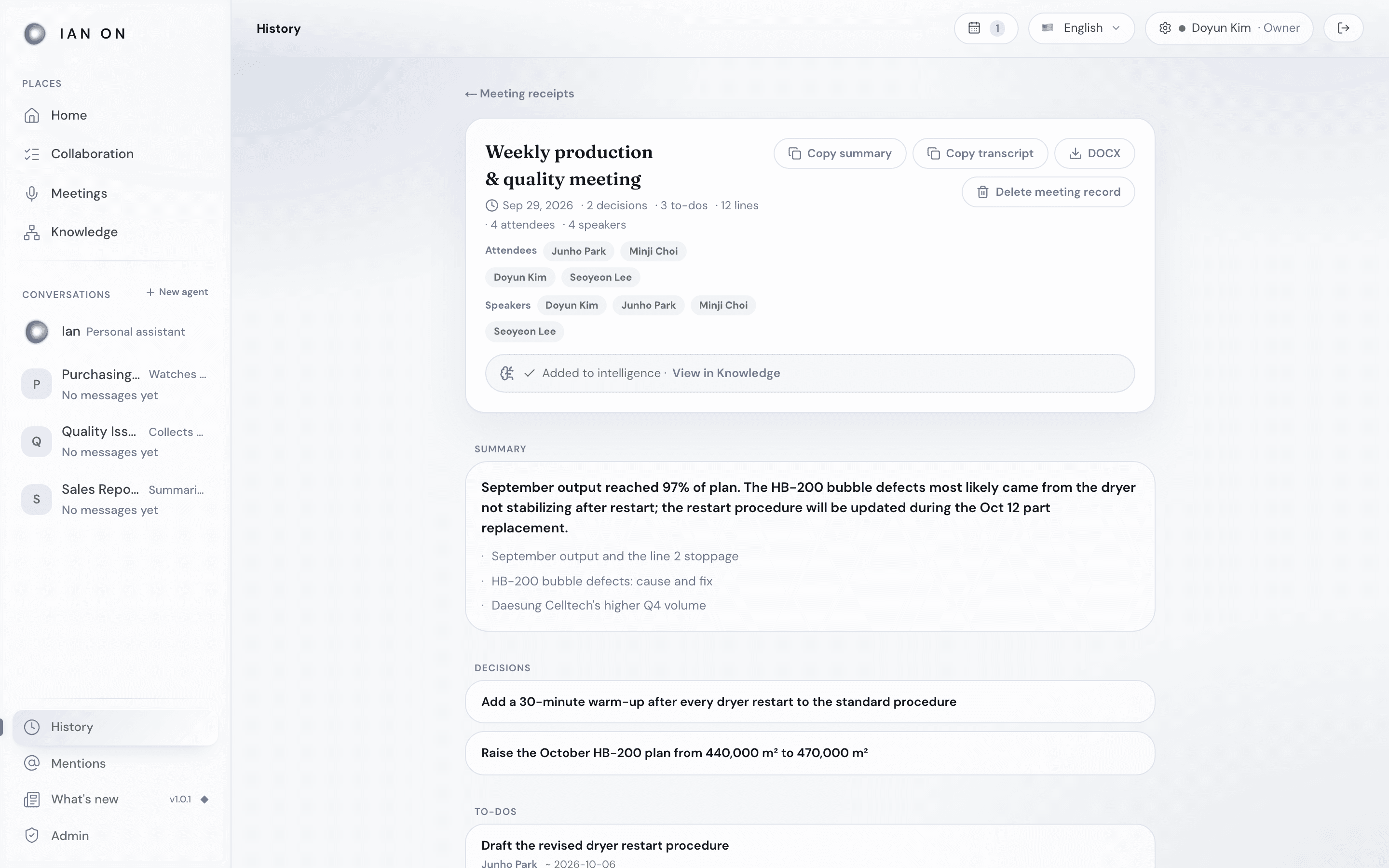
Press End meeting to stop transcription and save the transcript, decisions, and to-dos as a meeting record. The summary is created automatically right after saving. Once saving finishes, Meeting record · Summary & download under Meeting wrap-up opens the meeting record, where you can copy the summary and transcript and download a DOCX.
The meeting keeps going even if you move to another menu, and from the meeting bar at the bottom left of the screen you can use Back to meeting, Pause/Resume, and End meeting. If the meeting bar shows Transcription stopped · Meeting open or Meeting in progress, End meeting finishes the meeting with the saved transcript without turning the mic back on. From Meeting in progress, press Continue to pick up again with Continue transcribing on the meeting screen. Only This device’s mic turns back on in that case; online meeting sharing has to be started again.
- Once the meeting record is saved, press Add to intelligence under Meeting wrap-up to record the decisions and to-dos in Knowledge. This doesn't happen automatically, and a meeting with only to-dos can be recorded too. A meeting shared with a team is recorded in that team's Knowledge. A meeting shared with Invited people only shows Not added: no team, and a demo meeting shows Not added: demo meeting. Once it's recorded, check it with View in Knowledge, and that team's members can ask Ian about it. You can also record it from the meeting receipt, or press Try again on a record that failed.
- Meetings you ran collect in History as Meeting receipts, where you can reopen them. From a receipt, the host can permanently delete the transcript and decision records with Delete meeting record → Delete. Content already recorded in Knowledge isn't deleted with it.