Home & Ian conversations
See your schedule and what needs your attention at a glance on Home, and ask Ian questions or hand over work in your conversation with Ian.
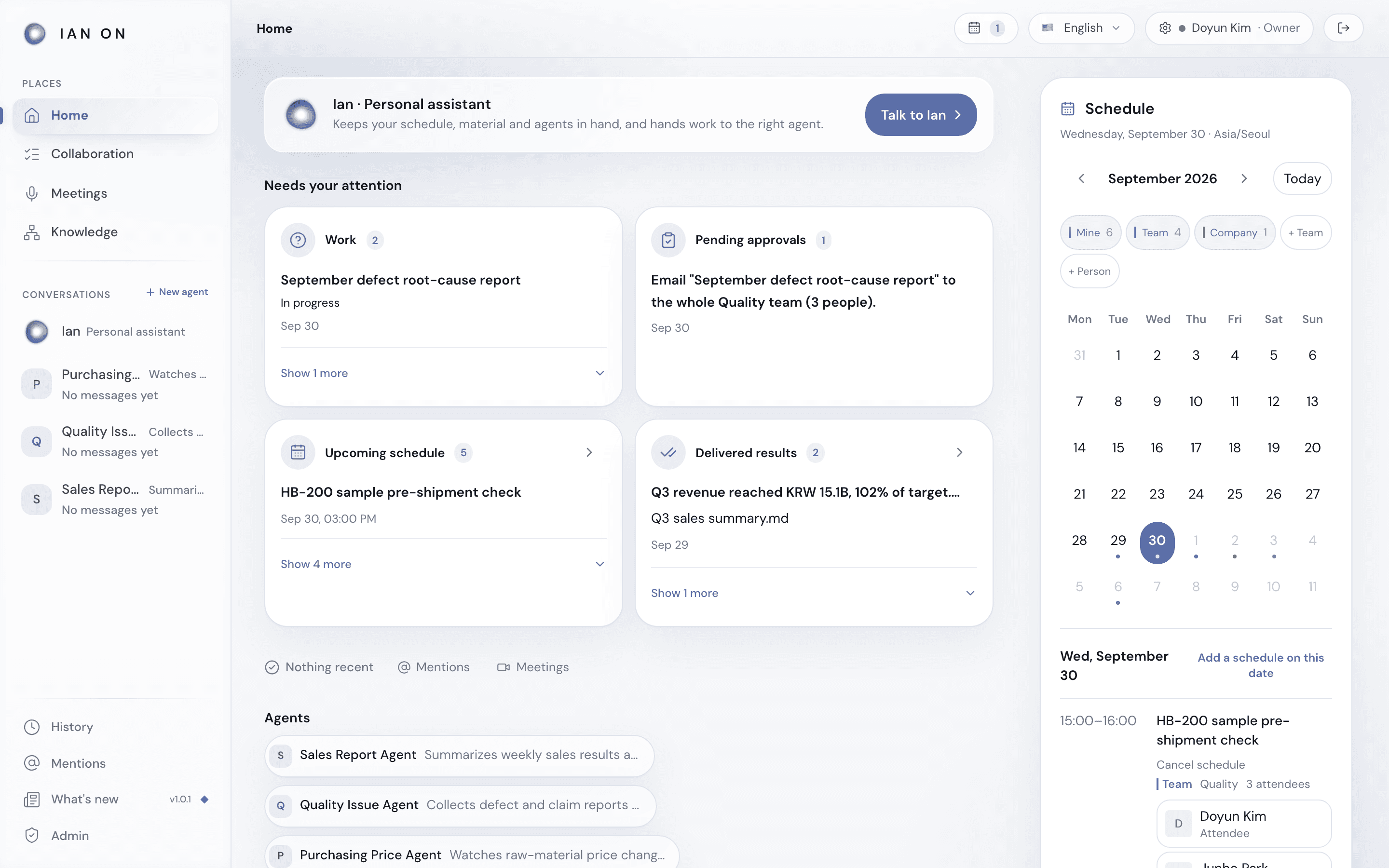
Home shows Talk to Ian, Needs your attention, Agents, and Schedule. Your conversation with Ian opens on its own screen: press Talk to Ian, or press Ian in the Conversations list in the left menu.
Needs your attention
In Needs your attention, you check Mentions, Work, Pending approvals, Upcoming schedule, and Delivered results. If the meetings feature is on, Meetings appears too. Press an item to open the related screen. Empty sources are grouped under Nothing recent, and if one fails to load, press Try again on it.
Schedule
The Schedule calendar appears on the right of Home on a wide screen, and at the bottom on a narrow one. Use the arrows to change the month or press Today to come back to this month, and press a date to see that day's schedule. Choose which schedules to show with the Mine, Team, and Company buttons. Company material and the knowledge graph are in Knowledge.
To add a schedule, pick a date and press Add a schedule on this date. Type a Korean schedule sentence and press Review, then check the title, time, attendees, and visibility, and press Confirm schedule.
Ask Ian or hand over work
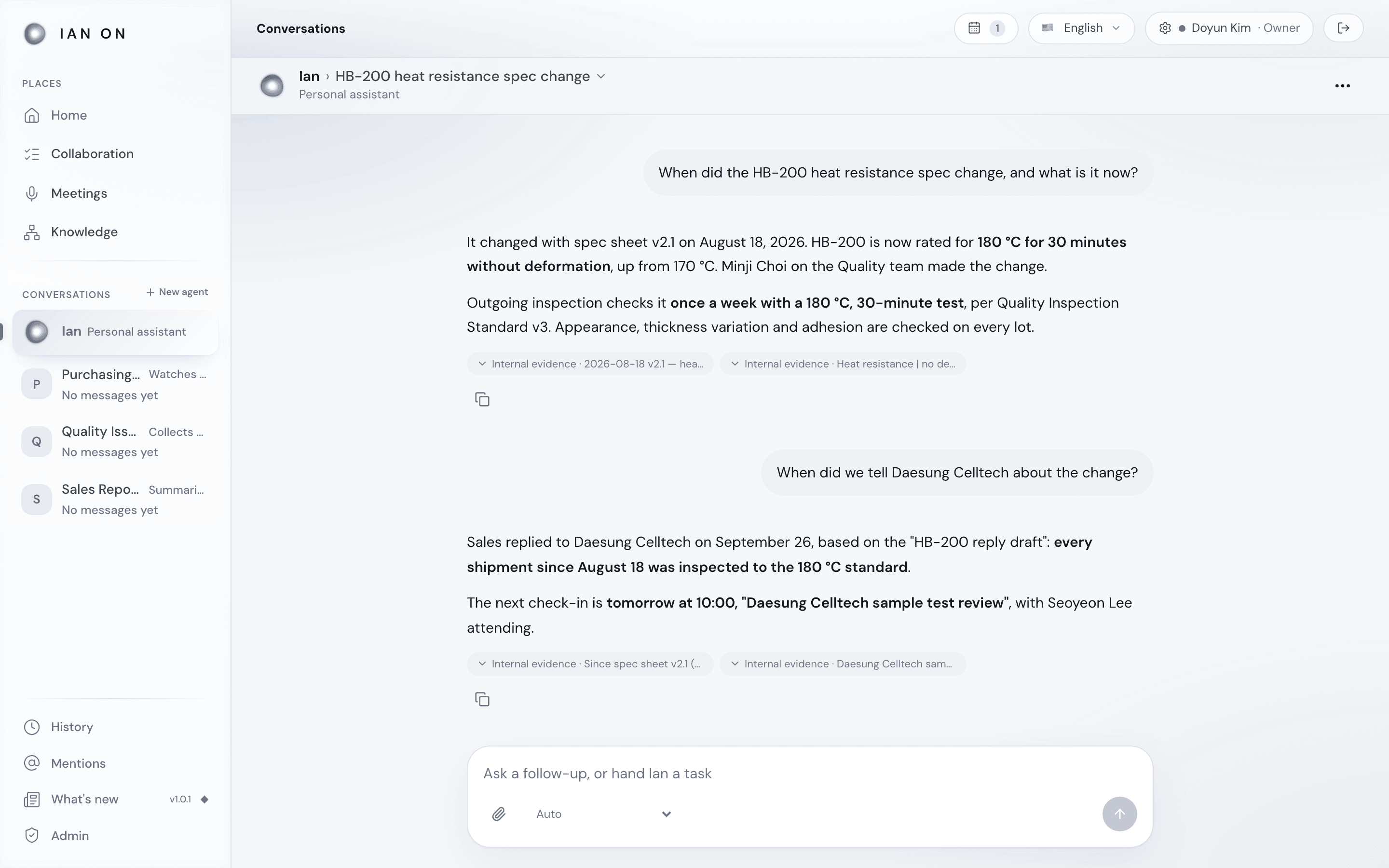
Press Talk to Ian, type a question or a task in the box, and press the Send button (the up arrow). You can paste or drag in images and document files, or add them with the paperclip Attach files or images button. While Ian works, a progress status such as Preparing an answer… or ‘Searching your material…’ appears. Ian looks at your request and decides on its own whether to answer right away or run it as work.
- If it's a simple question → the answer streams live right below, in a thread. To see processing steps such as searching your material, expand Progress detail under the answer. Press an Internal evidence chip to expand the evidence, and if an original file you can view is linked, Download original appears. When Ian searched the web, web page chips are attached to the answer, marked Cited in the answer or Only retrieved. You can keep asking follow-ups; the thread remembers the recent conversation.
- If Ian treats it as work → Ian makes a plan and starts running it right away. You don't need to approve the start. Follow the progress in the conversation, Stop it if needed, and open the detail screen with Open work. When a step needs a decision, the person who requested the work presses Approve (or one of the offered options) or Reject right in the conversation.
To hand over work based on an answer, ask for it in a follow-up message in the same conversation.
Files and images you attach don't stay only in this conversation; they're also saved to Knowledge. In a team Ian chat they go to that team, and in your personal Ian chat they go to the team you joined first. If you have no team, attachments from owners and admins are saved as Global (visible to everyone). Other members can't attach document files until they're assigned to a team, and their images aren't saved to Knowledge.
If you send just a meeting schedule in Korean, such as ‘내일 15시 마케팅팀 주간회의’ (marketing team weekly meeting, tomorrow at 3 p.m.), a schedule draft appears instead of an answer. Check it and press Confirm schedule to save it to the calendar.
Each time you ask, Ian also looks at the schedules you can see from today to the end of this week. If it can't load them, it tells you so instead of saying you have nothing scheduled. For material, both your personal Ian chat and a team Ian chat search everything you can see: your personal memory, the knowledge of every team you belong to, and global knowledge.
If the meetings feature is on, record meetings in Meetings in the left menu.
If you've turned on and connected Gmail assistant, your Gmail check status appears under the Ian conversation, and if there are reply drafts written today, you can open them directly with Open Gmail drafts.
Answers and the composer
Pick Auto or the AI model you want from the model list under the box. Copy a regular answer with the Copy button under it. If a work result is long, see all of it with Show all.
If a message fails to send, what you typed stays in the box; send it again with Send again. If the connection drops and you can't see the result, press Check again. While an answer is coming in, you can stop it with the Stop button that takes the Send button's place. If you type a new instruction in the meantime, that button changes to Stop and use this; press it, and the new instruction is sent once the stop is confirmed.
Type @ in the box to call someone on your team and send them a message. Check mentions you receive in Mentions under Needs your attention on Home, or in Mentions in the left menu.
Recurring work
Tell Ian what to do and how often (or when to do it once), and Ian takes it on itself in that conversation, checks on it, and reports the results back to the same conversation. If Ian doesn't know your time zone, it asks first. Once it's handed over, check the setup with Open the standing work under the answer. Recurring work you handed to an agent is in that agent's conversation, under Agent settings → Delegated tasks.
Conversation history and memory
- Your conversations with Ian are saved. Press the conversation title at the top of the screen to reopen an earlier conversation or start a New conversation. Deleting a conversation with Delete conversation in the conversation menu doesn't remove the knowledge Ian remembered.
- Requests that ran as work keep a record of the plan, progress, and result, and finished work is collected as receipts in History.
Ian remembers on its own what's worth keeping from your conversations. When it does, Remembered appears under the answer; if it fails, Couldn't remember this appears. Open a team in Collaboration, go into Team Ian chat, and say ‘Share this with the team’, and Ian shares what it recently remembered in that conversation to the team's knowledge. Anything that needs team review isn't shared, and Ian tells you why.
Talking with agents
Tell Ian what you want to hand over, like ‘Make an agent that summarizes meeting notes’, and Ian decides a name, the job, and base instructions, and creates the agent. The new agent's role and instructions appear under the answer, and Open [agent name] opens its conversation right away. You can also start by pressing New agent in the Conversations list in the left menu and answering the question What would you like to hand over? On Home, press a name under Agents to open your conversation with that agent. Work Ian passed to an agent appears in the agent's conversation as Handed over by Ian, and a review Ian asked for as Review requested by Ian.
In an agent message's menu (…), choose Reply to this message to follow up on that message; when you reply to a report, the agent uses the material that report used. Choose Continue with Ian and press Add to Ian's composer to quote that result in Ian's composer (it isn't sent right away). In Share with others, pick participants and press Open shared conversation to open a shared conversation with only that result shared. Standards you teach in the conversation build up in Instructions under Agent settings, and you can undo one with Revert in the saved notice under the answer.