Agents
Ask Ian and you get your own AI agent. It learns its job, works on its own at the times you set, and reports results in your conversation.
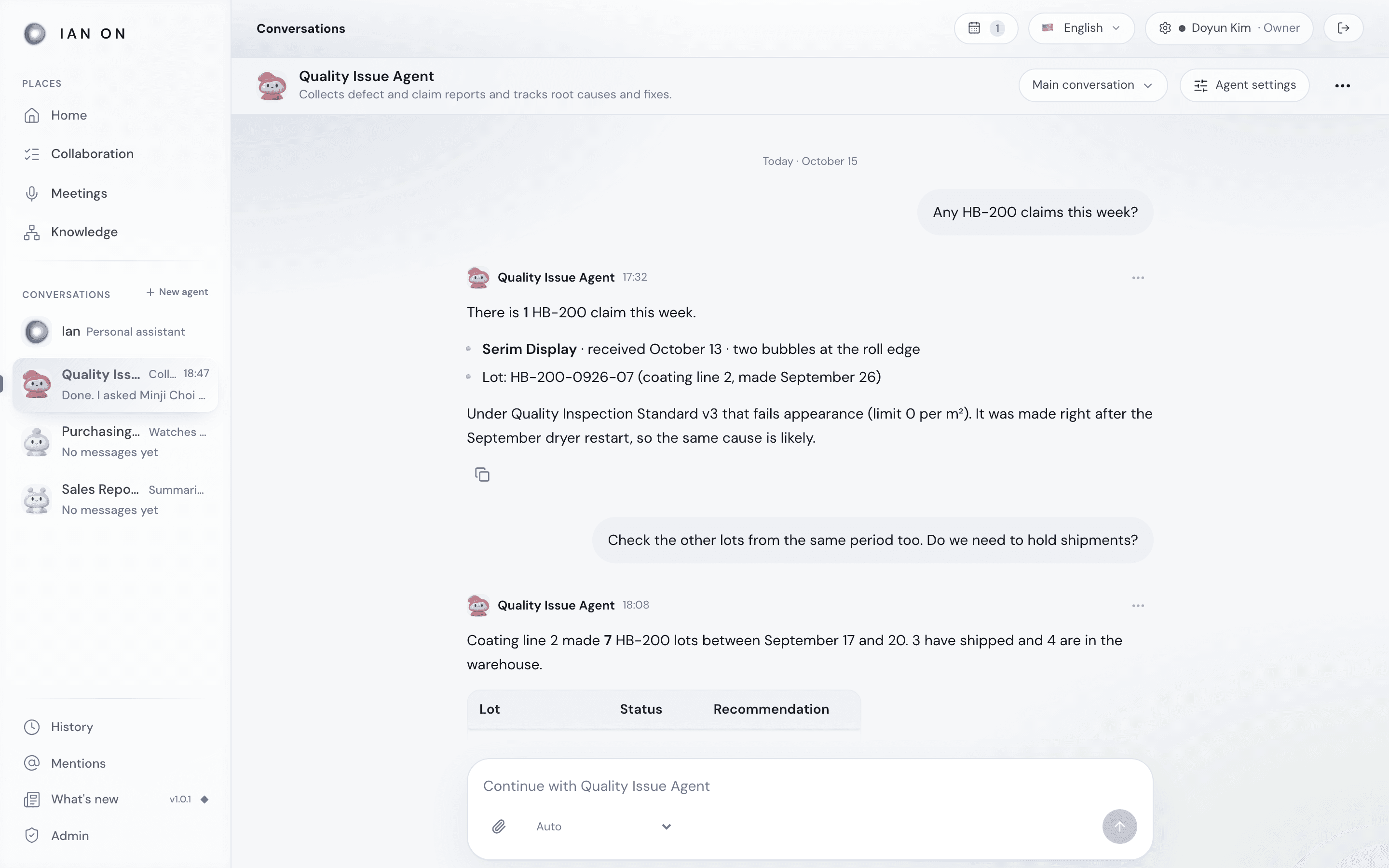
An agent is your own AI colleague that keeps handling one job for you. If Ian is the personal assistant who looks after your whole day, an agent is the specialist who goes deep on one area. Hand it recurring or specialized work — a weekly sales summary, root-cause analysis of defect claims, checking raw material prices — and it learns the standards for that work, works on its own at the times you set, and reports the results in your conversation.
What an agent does for you
- Created and taught by talking — there's no settings screen to fill in. Tell Ian what kind of agent you need, and Ian sets the name, the job, and even the instructions.
- Has its own memory — what it learns in conversation goes into the agent's own memory and is used for the next job.
- Works from company knowledge — it also searches the team and company material you can see.
- Works on its own — it starts by itself every hour, day, or week, or when new material arrives or a prior result is confirmed.
- Reports with results — it sends its report along with files such as Word, Excel, or PowerPoint to the conversation, and keeps a record of what it was based on.
Create an agent
There are two ways.
- Ask Ian — in the Ian conversation, describe the job, for example "Make an agent that summarizes meeting notes." Ian picks a name, a job, and base instructions, creates the agent, and shows the details under its answer along with Open [agent name].
- Start it yourself — click New agent next to the Conversations heading in the left menu. A conversation with the new agent opens right away and asks, What would you like to hand over? Just describe the job.
Agents you create appear in the Conversations list on the left and under Agents on Home. Click a name to open your conversation with that agent.
Face and name
Every agent gets a character face. It's picked automatically from 48 characters, avoiding the faces your other agents already use as far as possible. To change it, click the face at the top of the agent's conversation and pick another character. To change the name, open the agent's menu in the left list and choose Rename.
Teach it
Agents learn through conversation. Tell one a standard, such as "Always put numbers in a table with their sources," and it's saved to the agent's settings, with a notice such as Saved to settings · Rule under the answer. If something was saved by mistake, undo it with Revert on that notice.
See where things stand at a glance in Agent settings in the agent's conversation.
- Name and role
- Instructions — apply to all of this agent's Work, starting with the next request.
- Materials it can read — the list of material added when the agent was created and files uploaded to the conversation. Beyond this list, the agent also searches the team and company knowledge you can see, as described below.
- Delegated tasks — recurring tasks and their next run time.
- Advanced — the default model and more.
What an agent can see
In your personal conversation, an agent searches its own memory and the team and company material you can see right now. It doesn't see your personal memory or other agents' memories. When your team membership changes, what the agent can see changes with it. In a Shared conversation used by several people, private memories aren't brought in.
If some material can't be read, a notice such as Some memory could not be read appears under the result, so nothing it missed is hidden from you.
For an agent to query a company database, an admin has to grant that agent permission in Database connections. It can see only the tables the permission allows, and never the blocked columns.
Hand over work
Ask an agent for something in its conversation, and it takes the job with Taken on · starting and starts the Work.
- While it's running, Working · N min shows, and View work shows the steps and the files made so far.
- Click Stop to stop it, or Hand over if another agent is a better fit.
- When it's done, a report arrives with Done · result sent, and the files it made open right beside the conversation.
See Work for the full flow.
Let it work on its own: recurring tasks
Tell an agent what to do and when, and it schedules it as a recurring task right away and confirms the schedule in its answer ("Every Monday at 9 am, summarize last week's sales"). To enter it yourself, use Add recurring task to set the task, how it repeats, the time, and the time zone, then click Confirm schedule.
- At set times — every hour, every day, on certain days each week, or once at a set time.
- When something happens — Starts on new material (runs when you send a new file in your conversation with that agent) or Starts when a prior result is confirmed.
From Recurring tasks in the menu at the top of the conversation, you can use Run now, Pause, Resume, Edit future runs, and Add recurring task. To change how often it runs, just ask the agent. Every run's result and every failure is reported in this conversation, and when a new report arrives, New report shows in the left list.
Click View flow to see all the tasks you've handed over and the Recent runs, and check the Criteria and evidence used for each run.
Build on a report
From the menu on an agent's message, choose:
- Reply to this message — follow up on that report. The agent uses the same material the report used.
- Continue with Ian — click Add to Ian's composer to quote the result in Ian's composer. It isn't sent right away.
- Share with others — pick participants and click Open shared conversation to bring just this result into a conversation together. Your conversation and the agent's memory aren't passed along.
How Ian and your agents work together
Ian knows your agents. While talking to Ian, point to one — "Hand this to the sales report agent" — and Ian passes the work to that agent. If you don't name an agent, Ian does the work itself. Work Ian passed on appears in the agent's conversation as Handed over by Ian, and a review Ian asked for appears as Review requested by Ian.
How agents differ from organization agents
Your agents are personal agents that work for you, and they don't appear in anyone else's list. Agents shared by the whole company or a team are separate: owners and admins create them and set their permissions in Admin → Agents.
Home & Ian conversations
See what needs you today at a glance on Home, and ask Ian, your personal assistant, a question or hand over work.
Work
Whatever you hand over by asking becomes Work. Ian or an agent sees it through from start to finish and brings the result files and their evidence back to your conversation.